


The Fossil Q Smartwatch has carved out a reputation as one of the most stylish and capable wearable devices on the market, blending classic watch design with modern smart functionality. Whether you just unboxed your Fossil Q Gen 5, the Fossil Q Founder, or one of the hybrid models in the Fossil Q collection, understanding how to get the most out of your device can transform a simple timepiece into a powerful daily companion. This Fossil Q smartwatch user guide walks you through everything from initial setup to advanced customization, giving you the confidence to use every feature your watch has to offer. If you are looking for practical tips, troubleshooting advice, or a deeper understanding of the Fossil Q experience, this comprehensive guide covers it all.
What Is the Fossil Q Smartwatch and Why Should You Care?
The Fossil Q Smartwatch runs on Wear OS (formerly Android Wear), giving you access to Google Assistant, a vast library of apps, and seamless integration with both Android and iOS smartphones. Unlike many fitness-focused smartwatches that sacrifice aesthetics for function, Fossil Q models maintain a refined, minimalist look that transitions effortlessly from the boardroom to the gym. The lineup includes touchscreen variants powered by Qualcomm Snapdragon processors, as well as hybrid models that retain traditional watch hands while embedding smart sensors underneath the dial. Understanding which Fossil Q model you own is the first step toward mastering the user guide, since each variant offers slightly different features and capabilities.
Getting Started with Your Fossil Q Smartwatch
Unboxing and First Impressions
When you first open the Fossil Q box, you will typically find the smartwatch, a proprietary magnetic charging cable, a quick-start card, and sometimes a spare band or warranty documentation. The build quality immediately stands out, with stainless steel or aluminum casings, Gorilla Glass or sapphire-style display protection depending on the model, and interchangeable strap attachment points that follow the standard Fossil 22mm lug width. Before powering on, take a moment to inspect the screen for any protective film, remove it, and ensure the charging pins on the back of the case are clean and free of oils.
Charging Your Device for the First Time
Fossil recommends charging your new Fossil Q Smartwatch fully before your first use. The magnetic charging cradle aligns with contacts on the back of the watch, and a solid LED light indicates charging status. A full charge typically takes between one and two hours. Once the battery reaches 100 percent, you are ready to power on and begin the setup process. Keeping the charger in a cool, dry place and avoiding wireless charging pads not designed for Fossil Q models will help preserve battery longevity over time.
Setting Up and Connecting Your Fossil Q
Downloading the Fossil Smartwatch App
The official companion application for Fossil Q devices is available on both the Google Play Store and the Apple App Store. Search for “Fossil” or “Wear OS by Google,” depending on your phone’s operating system. The app serves as the central hub for firmware updates, watch face downloads, notification management, and health data syncing. During installation, make sure your smartphone has at least 500 MB of free storage, as the app and its associated cache files can accumulate quickly once you start downloading watch faces and third-party applications.
Bluetooth Pairing Made Simple
After launching the app and creating or signing into your Google account, the setup wizard will prompt you to enable Bluetooth and search for your Fossil Q Smartwatch. Hold the crown button on the side of the watch to wake the display, and the pairing request should appear on both your phone and watch. Confirm the match code displayed on each screen, and within seconds your devices will be linked. For the best connection stability, keep your phone within fifteen feet of your watch during the initial pairing process. If you experience connection drops later, toggling Bluetooth off and back on or restarting both devices usually resolves the issue.
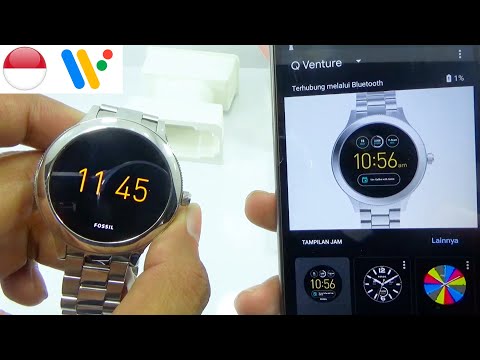
The Fossil Q Smartwatch features a combination of a vibrant AMOLED touchscreen and a physical rotating crown. The crown lets you scroll through menus, zoom in on maps, and adjust volume without covering the screen with your finger — a particularly useful feature during workouts. Swipe left and right to move between watch faces and widgets, swipe down from the top to access notifications and quick settings, and swipe up from the bottom to view your app drawer and health metrics. A short press of the crown returns you to the default watch face, while a long press accesses the power menu or settings.
Customizing Watch Faces
One of the standout features of the Fossil Q platform is the ability to personalize your watch face. You can choose from hundreds of designs in the Wear OS gallery, ranging from minimalist analog clocks to data-rich digital displays that show weather, calendar events, and battery percentage simultaneously. To change your watch face, press and hold the current face on your wrist, swipe left or right to browse options, and tap to select. You can also save multiple watch faces and switch between them based on your outfit, activity, or mood.
Fitness Tracking and Health Features
Step Counting and Activity Goals
The Fossil Q Smartwatch includes a built-in accelerometer and gyroscope that track your daily steps, distance traveled, calories burned, and active minutes. Google Fit serves as the primary health data platform, automatically syncing your activity history across your phone, tablet, and cloud account. You can set personalized step goals within the companion app, and the watch will send you gentle buzz notifications when you hit milestones or when you have been sedentary for an extended period. For users who prefer a dedicated fitness ecosystem, the Fossil Q can also integrate with third-party apps like Strava, MyFitnessPal, and Nike Run Club through the Wear OS app store.
Heart Rate Monitoring and Sleep Tracking
Continuous heart rate monitoring is available on most Fossil Q touchscreen models, using an optical sensor on the underside of the case. This data feeds into Google Fit to provide resting heart rate trends, real-time exercise heart rate zones, and estimated calorie expenditure during workouts. Sleep tracking automatically activates when you wear the watch overnight, logging your light, deep, and REM sleep phases. The accuracy of these sensors is remarkably good for a device in this price range, though you should ensure the band is snug but comfortable for the most reliable readings.
Notifications, Calls, and Daily Connectivity
Once paired, your Fossil Q Smartwatch mirrors notifications from your phone, including text messages, email alerts, calendar reminders, and app-specific updates from WhatsApp, Slack, or social media platforms. You can manage which apps send notifications by opening the Wear OS app on your phone and toggling permissions per app. On models that support Google Assistant built-in, you can reply to messages using voice dictation, dismiss notifications with a swipe, or even answer incoming calls when your phone is out of reach. The on-screen microphone icon activates voice commands, and the speaker provides adequate volume for call conversations in quiet environments.

Battery Life and Charging Best Practices
Battery performance on the Fossil Q Smartwatch varies depending on usage patterns, but most users can expect one to two days of runtime with moderate use. Factors that drain the battery most quickly include always-on display mode, frequent GPS tracking during workouts, high screen brightness, and a high volume of notification alerts. To extend battery life, consider disabling the always-on display, reducing the screen timeout duration, and limiting background app refresh for non-essential applications. If you find yourself charging nightly, rest assured this is typical behavior for Wear OS smartwatches and not an indicator of a malfunction.
Fossil Q vs. Other Smartwatches in the Same Price Range
When compared to competitors in the affordable smartwatch segment, the Fossil Q holds its own with a combination of premium build quality, a polished user interface, and strong brand heritage. Below is a quick comparison table highlighting key specifications across popular models.
| Feature | Fossil Q Gen 5 | Apple Watch SE | Samsung Galaxy Watch 4 |
| Operating System | Wear OS | watchOS | Wear OS / Tizen |
| Display Type | AMOLED Touch | Retina LTPO OLED | Super AMOLED |
| Battery Life | 1–2 days | 18+ hours | 2–3 days |
| Water Resistance | 3 ATM | 5 ATM | 5 ATM |
| Google Assistant | Yes | No (Siri) | Yes |
| Price Range (USD) | $200–$275 | $249–$299 | $200–$300 |
Advanced Tips and Expert Recommendations
Once you have the basics under your control, several advanced techniques can elevate your Fossil Q experience. Enable Google Assistant gestures by saying “Hey Google” to quickly set timers, check weather forecasts, or control smart home devices without touching your watch face. Explore the settings menu to enable Do Not Disturb mode during meetings or bedtime, which silences all vibrations and screen wake-ups. You can also download offline watch faces and apps directly to your watch through the Wear OS app, saving you from needing a constant data connection to customize your experience. If you travel internationally, enabling airplane mode and manually connecting to Wi-Fi networks can help preserve battery while still allowing you to receive notification syncing when available.
For users who customize their Fossil Q with third-party watch faces or widgets, it is worth noting that overly complex faces with constant GPS, weather refresh, and live heart rate monitoring will noticeably reduce battery life. Striking a balance between visual appeal and power efficiency is the hallmark of a savvy Fossil Q owner.
Frequently Asked Questions (FAQs)
1. How do I factory reset my Fossil Q Smartwatch if it becomes unresponsive? Press and hold the crown button for approximately ten seconds until the screen goes dark and the Fossil logo appears, then release. This soft reset clears temporary software glitches without erasing your data. For a full factory reset, navigate to Settings > System > Reset options > Erase all data from the watch using the Wear OS companion app on your phone.
2. Can I use a Fossil Q Smartwatch without a smartphone nearby? Most core functions like telling time, checking the weather from a cached forecast, and using pre-downloaded offline watch faces work without your phone. However, real-time notifications, voice assistant queries, and GPS mapping require an active connection to your paired smartphone or a Wi-Fi network.
3. What bands are compatible with Fossil Q smartwatches? Fossil Q models use a standard 22mm lug width, meaning you can swap in any aftermarket or official Fossil band with 22mm-end lugs. Leather, metal link, silicone, and woven bands are all compatible, giving you the freedom to match your watch to any occasion.
4. Is the Fossil Q Smartwatch waterproof enough for swimming? Most Fossil Q models carry a 3 ATM water resistance rating, which means they can handle splashes, rain, and brief hand-washing exposure. However, they are not recommended for submersion beyond shallow water entry, and you should avoid wearing them in saunas or hot tubs where steam and high temperatures can compromise the seals.
5. How often should I update the firmware on my Fossil Q? Firmware updates are released periodically and include bug fixes, performance improvements, and occasionally new features. Checking for updates monthly through the Wear OS app on your phone ensures you always have the latest security patches and the smoothest possible user experience.
Mastering your Fossil Q Smartwatch is less about memorizing every menu option and more about building a workflow that fits naturally into your daily routine. Start with the essentials — charging, pairing, and notification management — then gradually explore fitness tracking, customization, and voice commands as you grow comfortable. This Fossil Q smartwatch user guide is designed to be a living reference you can return to as you discover new features and tips. With its blend of timeless design and cutting-edge smart technology, your Fossil Q is not just a gadget; it is a reliable partner for every chapter of your day.