


When your device, software, or system suddenly stops working, the instinct is often to panic or immediately call for help. But basic troubleshooting is a skill that can save you hours of frustration, countless dollars in repair costs, and plenty of downtime. Whether you are dealing with a slow computer, a malfunctioning router, an app that refuses to open, or a network that keeps dropping, understanding how to diagnose and resolve common issues puts you in control. This guide walks you through everything from foundational troubleshooting logic to practical techniques you can apply right now, covering beginner methods, intermediate strategies, and even some advanced approaches that seasoned IT professionals rely on every day.
What Basic Troubleshooting Really Means
At its core, troubleshooting is the systematic process of identifying, diagnosing, and resolving problems in a system or device. It is not about guessing randomly or applying fixes blindly. True troubleshooting follows a logical sequence of observation, hypothesis formation, testing, and verification. The term “basic troubleshooting” refers to the foundational methods that anyone can learn, regardless of technical background. These methods apply across a wide range of scenarios, including computer troubleshooting, network problem-solving, software debugging, and even hardware diagnosis. When you understand the underlying principles, you can tackle unfamiliar issues with confidence because you are no longer relying on luck—you are applying a proven framework.
The reason basic troubleshooting matters so much in today’s digital world is simple: technology touches nearly every aspect of modern life. From smartphones and laptops to smart home devices and enterprise servers, problems are inevitable. The difference between someone who struggles through every issue and someone who resolves them quickly comes down to having a reliable process.
The Core Principles of Effective Troubleshooting
Before diving into specific steps, it helps to understand the principles that underpin every successful troubleshooting session. These are not just rules of thumb—they are the logical backbone of how experienced technicians approach problems.
- Start with the simplest explanation. Often, the cause of an issue is something trivial—a loose cable, a disconnected Wi-Fi signal, or an outdated driver. Always rule out the obvious before exploring complex causes.
- Change one variable at a time. If you modify multiple settings simultaneously and the problem resolves, you will never know which change actually fixed the issue. This principle is fundamental in both IT troubleshooting and everyday device repair.
- Document everything. Write down what you tried, what happened, and what changed. This is invaluable if you need to escalate the issue or seek help from a professional.
- Understand the system. Even a basic knowledge of how a device or application is supposed to work makes it exponentially easier to identify what is wrong.
- Verify the fix. A problem is not truly solved until you confirm it is resolved and ensure it does not recur.
Essential Troubleshooting Steps Every Beginner Should Know
If you are new to the world of technical problem-solving, following a structured approach will dramatically improve your success rate. Here is a step-by-step framework that works for almost any issue.
Step 1: Identify the Problem Clearly
Before you do anything, take a moment to articulate exactly what is wrong. Is the device not turning on? Is the software displaying an error message? Is the network connection intermittent? The more precisely you can define the problem, the easier it becomes to find a solution. Write down any error codes, unusual behavior, or recent changes you made before the issue started.
Step 2: Check the Basics
It sounds repetitive, but skipping the fundamentals is the most common mistake people make. Run through this checklist:
- Is the device powered on and connected to a reliable power source?
- Are all cables securely plugged in?
- Is the internet or network connection active?
- Have you restarted the device or application?
- Is there sufficient storage or memory available?
Step 3: Search for the Error or Symptom
Most issues have been encountered and documented by someone else. Search the exact error message or describe your symptoms in a search engine. You will often find forums, knowledge base articles, or official support pages that walk you through the solution.
Step 4: Try the Most Likely Fix
Based on your research, apply the most common and least invasive solution first. This might include restarting a service, updating software, clearing a cache, or resetting a configuration.
Step 5: Test and Confirm
After applying a fix, test the system thoroughly. Does the problem persist? Did a new issue appear? If the fix worked, great. If not, move on to the next likely solution and repeat the process.
Intermediate Troubleshooting Techniques
Once you are comfortable with the basics, you can start layering in more sophisticated methods that significantly expand your diagnostic capabilities.
Using Built-In Diagnostic Tools
Most operating systems come equipped with powerful diagnostic utilities that many users never touch. Windows Event Viewer logs system errors and warnings that can point directly to the root cause of a problem. On macOS, the Console app provides real-time system logs. Linux users can leverage journalctl and dmesg to inspect kernel messages and service failures. Learning how to read and interpret these logs transforms troubleshooting from guesswork into a science.
Safe Mode and Clean Boot Diagnostics
When an issue appears to be caused by software conflicts or third-party applications, booting into Safe Mode or performing a clean boot can isolate the problem. Safe Mode loads only the essential drivers and services, while a clean boot starts Windows with a minimal set of startup programs. If the problem disappears in Safe Mode, you know the issue lies with a driver, startup item, or background service that was not loading in that state.
System Restore and Rollback Strategies
If a problem started after a recent change—such as an update, a new installation, or a configuration tweak—rolling back that change can be incredibly effective. System Restore on Windows and Time Machine on macOS allow you to revert your system to a previous stable state without losing personal files. This technique is especially valuable when dealing with registry errors, driver conflicts, or post-update instability.
Network Troubleshooting with Command-Line Tools
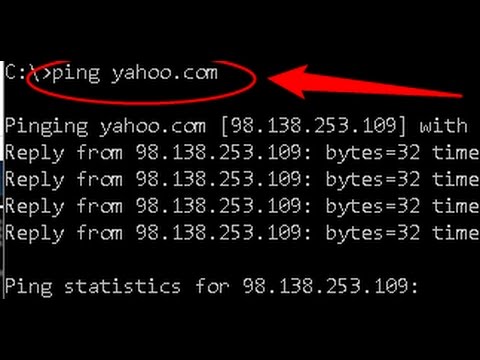
For connectivity issues, command-line utilities like ping, tracert (or traceroute on Mac and Linux), ipconfig (or ifconfig), and nslookup are indispensable. These tools help you determine whether the problem is local, related to your ISP, or caused by a specific website or server. For example, if ping fails to reach a website but works for others, the issue is isolated to that particular service provider or server.
Advanced Troubleshooting Strategies for Power Users
For those who want to push their troubleshooting skills further, these advanced techniques provide deeper insight and faster resolution times.
Analyzing Crash Dumps and Memory Forensics
When applications crash or systems blue-screen, they often generate memory dump files that contain a snapshot of the system’s state at the moment of failure. Tools like WinDbg for Windows and gdb for Linux allow you to analyze these dumps and identify the exact driver, process, or module that caused the crash. This level of analysis is commonly used in professional IT support environments and is invaluable for resolving persistent, hard-to-diagnose issues.
Monitoring Resource Usage Over Time
Performance problems like slow boot times, sluggish applications, or random freezes are often caused by resource contention—when your CPU, RAM, or disk is being consumed by an unnoticed process. Using tools like Task Manager, Activity Monitor, or htop to track resource usage patterns can reveal the culprit. Look for processes consuming abnormally high CPU or memory over extended periods, as these are often signs of a background service gone rogue or a malware infection.

Remote Diagnostics and Logging
In enterprise environments, remote troubleshooting relies on centralized logging systems like Splunk, ELK Stack, or Windows Event Forwarding. These tools aggregate logs from multiple devices, allowing administrators to correlate events and identify patterns that would be impossible to see from a single machine. Even for personal use, setting up automated log monitoring can help you catch problems before they become full-blown failures.
Comparison Table: Beginner vs. Advanced Troubleshooting Approaches
| Aspect | Beginner Approach | Advanced Approach |
| Problem Identification | Observes symptoms and searches online | Uses logs, diagnostics, and system monitoring to pinpoint root cause |
| Tools Used | Restarts, settings toggles, web searches | Command-line utilities, debuggers, crash dump analyzers |
| Scope | Single device, single application | Network-wide, multi-system, infrastructure-level |
| Time Investment | Quick fixes, immediate relief | Deeper analysis, longer-term resolutions |
| Recurrence Prevention | Rarely addresses underlying causes | Implements monitoring, updates, and hardening to prevent future issues |
Expert Tips for Faster Problem Resolution
Experienced troubleshooters have developed habits that make them dramatically more efficient than the average user. Here are some tips you can adopt immediately:
- Always note when the problem started. Correlating a problem with a recent event—such as a software update, a new installation, or a power outage—is one of the fastest paths to a solution.
- Google the exact error message in quotation marks. This tells the search engine to look for pages containing that precise phrase, dramatically improving the relevance of results.
- Keep a troubleshooting journal. Even a simple text file where you log problems and their resolutions saves enormous time when similar issues arise in the future.
- Update before you troubleshoot. Many issues are caused by known bugs that have already been fixed in a newer software version. Always check for updates early in the process.
- Isolate the environment. If possible, test the problem on a different device, network, or user account. This helps determine whether the issue is system-specific or environment-specific.
Conclusion
Basic troubleshooting is far more than just restarting a device or Googling an error message. It is a structured, logical discipline that empowers you to take ownership of the technology you rely on every day. By understanding the core principles, following a systematic process, and progressively building your skills from beginner fundamentals to advanced diagnostic techniques, you can resolve the vast majority of issues you will encounter—faster and more effectively than ever before. The confidence that comes from knowing you can diagnose and fix problems independently is invaluable, and the time and money you save over the years is substantial. Start applying these techniques today, and you will wonder how you ever managed without them.
FAQs

What are the five basic steps of troubleshooting?
The five basic steps of troubleshooting are: (1) identify the problem, (2) establish a theory of probable cause, (3) test the theory to determine the actual cause, (4) establish a plan of action to resolve the problem, and (5) verify full system functionality. Following this structured sequence ensures you address root causes rather than applying temporary patches.
How do you troubleshoot a slow computer effectively?
Start by checking Task Manager or Activity Monitor for resource-heavy processes. Clear temporary files and browser caches, uninstall unused applications, and run a full antivirus scan. If the slowness persists, check for disk errors using built-in tools like CHKDSK on Windows or Disk Utility on macOS, and consider upgrading to a solid-state drive (SSD) if you are still using a traditional hard drive.
What is the difference between troubleshooting and debugging?
Troubleshooting is a broader process that involves identifying and resolving any type of problem in a system, whether it is a hardware failure, a network issue, or a user error. Debugging is a more specific term that refers to finding and fixing errors or bugs in software code. While debugging is a subset of troubleshooting, troubleshooting encompasses a much wider range of diagnostic activities.

When should you stop troubleshooting and seek professional help?
You should consider seeking professional help when you have exhausted all reasonable diagnostic steps without resolving the issue, when the problem involves sensitive data or critical infrastructure where a wrong move could cause further damage, or when you encounter error messages that indicate a hardware failure requiring specialized equipment or expertise to repair safely.
Can basic troubleshooting prevent future problems?
Absolutely. Regular maintenance practices like keeping software updated, performing routine system cleanups, monitoring resource usage, and maintaining backups are all forms of proactive troubleshooting that help prevent problems before they occur. The most effective troubleshooting strategy is one that combines reactive problem-solving with preventive system care.