


Basic troubleshooting problems are the foundation of keeping any digital device, system, or application running smoothly. Whether you are dealing with a slow computer, a frozen application, a printer that refuses to cooperate, or an unreliable Wi-Fi connection, knowing how to diagnose and resolve issues quickly can save you hours of frustration and potentially expensive repair costs. This guide walks you through the most common troubleshooting scenarios you will encounter, practical steps to identify root causes, and expert-backed strategies that work for both beginners and intermediate users looking to build stronger problem-solving skills.
What Is Basic Troubleshooting and Why Does It Matter?
Troubleshooting is the systematic process of identifying, diagnosing, and resolving problems with a device, software application, or network. It involves a logical sequence of steps — from observing symptoms to isolating the cause and applying a fix. In the context of everyday technology use, basic troubleshooting covers the most frequent issues that users face daily, such as device crashes, connectivity failures, error messages, and performance slowdowns. Understanding troubleshooting fundamentals empowers you to handle issues independently rather than relying on costly technical support or service center visits.
The value of learning basic troubleshooting extends beyond just fixing immediate problems. It builds a deeper understanding of how your systems work, makes you more confident in handling technology, and reduces downtime whether at home, school, or in a professional environment. The skills transfer across platforms — a Windows troubleshooting mindset, for example, can be adapted to macOS or Linux environments with minor adjustments.
Common Computer Troubleshooting Problems and How to Fix Them
1. Slow Performance and Freezing
A sluggish computer is one of the most reported issues worldwide. Symptoms include long boot times, unresponsive applications, and the infamous spinning wheel or hourglass cursor. The root causes are often tied to resource hogging processes, insufficient RAM, or a nearly full hard drive.
- Check Task Manager or Activity Monitor — identify which applications or background processes are consuming excessive CPU or memory.
- Disable startup programs — many applications launch silently at boot and consume resources continuously.
- Clear temporary files and cache — over time, accumulated temporary data degrades system performance.
- Upgrade RAM or switch to an SSD — hardware upgrades provide long-term performance gains.
2. Blue Screen of Death (BSOD) and System Crashes
The Blue Screen of Death on Windows systems is a critical error that forces the system to shut down to prevent damage. Common triggers include incompatible drivers, corrupted system files, or failing hardware components like RAM or hard drives.
- Note the error code displayed on the blue screen — this is your primary diagnostic clue.
- Boot into Safe Mode and uninstall recently installed software or drivers.
- Run the built-in System File Checker (
sfc /scannow) to repair corrupted Windows files. - Use Windows Memory Diagnostic to test your RAM for faults.
3. Printer and Peripheral Device Failures
When a printer stops responding or a peripheral device like a mouse or keyboard disconnects unexpectedly, the issue is often related to driver conflicts, loose connections, or outdated firmware. Start by checking physical cable connections, then move to Device Manager to look for yellow warning icons indicating driver problems.
Network and Connectivity Troubleshooting
Network issues remain among the most disruptive troubleshooting problems for both home users and professionals. A dropped Wi-Fi connection, inability to access certain websites, or slow internet speeds can halt productivity entirely. The key to effective network troubleshooting is a layered approach — working from the physical layer up through the software stack.
Step-by-Step Network Diagnosis
- Restart your router and modem — this resolves the majority of temporary connectivity issues by clearing cached data and re-establishing the connection with your ISP.
- Run ipconfig /release and ipconfig /renew — these commands refresh your IP address assignment and fix many DHCP-related problems.
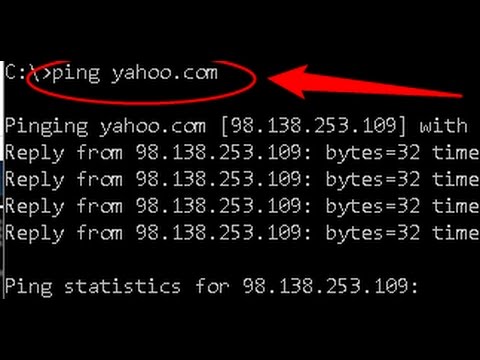
- Use ping and traceroute — pinging a website or IP address tells you whether your connection reaches the destination; traceroute maps the path and reveals where the connection breaks.
- Check DNS settings — switching to public DNS servers like Google (8.8.8.8) or Cloudflare (1.1.1.1) often resolves browsing failures caused by ISP-level DNS issues.
- Disable VPN or proxy temporarily — sometimes security tools interfere with normal traffic flow.
Software Troubleshooting: Applications and Operating Systems
Software-related troubleshooting problems encompass everything from a single application crashing to an entire operating system becoming unbootable. Understanding how software interacts with your operating system — and where common failure points exist — is essential for efficient diagnosis.
Application Crashes and Error Messages
When an application repeatedly crashes or throws error codes, start by checking for updates. Software incompatibilities with the latest OS updates are a leading cause. If the application was working previously, use your operating system’s restore point feature to revert to a stable configuration. For persistent crashes, clearing the application’s cache or reinstalling it often resolves underlying corruption.
Operating System Boot Failures
If your computer fails to boot into the operating system, you may encounter error messages like “No bootable device found” or a blank black screen. Common causes include corrupted boot records, failing hard drives, or incorrect BIOS boot order settings. Accessing the BIOS/UEFI and selecting the correct boot drive is a quick fix for many boot-related issues.
Hardware Troubleshooting Fundamentals
Hardware troubleshooting requires a combination of physical inspection and diagnostic software. Before assuming a component has failed, rule out the simplest causes first — loose cables, dust buildup causing overheating, or power supply fluctuations. Here are some essential hardware troubleshooting principles:
- The 50/50 rule — if you have recently swapped a component or changed a setting, revert it. Half of all hardware issues are caused by the most recent change.
- Listen for diagnostic beeps — motherboard beep codes during POST indicate specific hardware failures like missing RAM or GPU issues.
- Check thermal paste and fans — overheating is a silent killer of computer components and often mimics software issues.
- Test components individually — swap suspected parts with known working equivalents to isolate the failure.
Troubleshooting Tools Comparison
Having the right tools makes troubleshooting faster and more accurate. The table below compares essential troubleshooting utilities across key dimensions.
| Tool | Platform | Primary Use | Skill Level |
| Task Manager | Windows | Process monitoring and resource usage | Beginner |
| Disk Utility | macOS | Drive repair and permissions | Beginner |
| ipconfig / ping | Windows | Network diagnostics | Intermediate |
| Event Viewer | Windows | System log analysis | Intermediate |
| SMART diagnostics | Cross-platform | Hard drive health monitoring | Intermediate |
| MemTest86 | Cross-platform | RAM fault testing | Advanced |
Expert Tips for Faster Troubleshooting
Experienced technicians use a few proven habits that dramatically reduce troubleshooting time. First, always reproduce the problem — you cannot fix what you cannot consistently observe. Second, document every change you make during the process; when a fix works, you will know exactly what resolved it. Third, search the specific error code online before making changes — communities like Stack Overflow and manufacturer forums often have documented solutions that save you from unnecessary steps. Finally, keep a system restore point or backup before making significant changes to your system configuration.
How to Build a Personal Troubleshooting Toolkit
A well-prepared toolkit makes you more confident and efficient when issues arise. Your troubleshooting toolkit should include:
- A bootable USB drive with a Linux live distribution for data recovery and system diagnostics.
- Compression tools like 7-Zip to extract downloaded drivers and diagnostic utilities.
- A multi-meter for checking power supply voltages and cable continuity on hardware issues.
- Access to a secondary device for researching error codes and solutions while your primary device is down.
- A notepad or digital document to track symptoms, changes made, and results — this is often the most overlooked but most valuable tool.
When to Seek Professional Help
While basic troubleshooting covers the vast majority of everyday issues, there are situations where professional intervention is the right call. If you are dealing with hardware that has physically failed — a motherboard that has burned out, a cracked screen, or a hard drive clicking — attempting repairs yourself can cause further damage. Similarly, complex network configurations involving enterprise-level security or data recovery from physically damaged drives benefit from professional expertise. Knowing your limits is itself a critical troubleshooting skill.
Conclusion
Basic troubleshooting is a skill that transforms you from a passive technology consumer into an empowered problem solver. By following structured diagnostic steps, understanding the common causes behind frequent issues, and building a personal toolkit of diagnostic utilities, you can resolve the majority of technology problems without external help. The key is patience and methodology — always work from the simplest explanation to the most complex, document your steps, and never assume without testing. With practice, troubleshooting becomes second nature, saving you time, money, and unnecessary stress every time a problem arises.
Frequently Asked Questions
1. What is the first step in troubleshooting any basic computer problem?
The first step in troubleshooting any basic computer problem is to observe and document the exact symptoms. Note when the issue started, what you were doing when it occurred, and any error messages displayed. This information dramatically narrows the range of possible causes and prevents you from making unnecessary changes. Restarting the device is often the second step, as it clears temporary memory states and resolves a surprising number of transient issues.

2. How can I troubleshoot slow internet speed at home?
To troubleshoot slow internet speed at home, start by running a speed test using a wired Ethernet connection to rule out Wi-Fi interference as the cause. If speeds are still slow, restart your modem and router, then check for bandwidth-heavy background applications. Update your network adapter drivers and try changing your DNS server settings to a public DNS like 8.8.8.8 or 1.1.1.1. If the issue persists only on Wi-Fi, consider changing your wireless channel or moving your router closer to the affected device.
3. Why does my computer keep restarting unexpectedly?

Unexpected computer restarts are commonly caused by overheating, power supply instability, faulty RAM, or corrupted system files. Check your computer’s internal temperatures using monitoring software and clean any dust from fans and vents. Run a memory diagnostic tool like Windows Memory Diagnostic or MemTest86 to test your RAM. If restarts occur during specific activities or when accessing particular files, it may indicate a failing hard drive that needs immediate replacement.
4. What are the best free troubleshooting tools for Windows users?
The best free troubleshooting tools for Windows users include the built-in Event Viewer for system log analysis, SFC (System File Checker) and DISM for repairing corrupted system files, Task Manager for monitoring resource usage, and Device Manager for diagnosing driver issues. Third-party options like Revo Uninstaller help clean up stubborn software, while Wireshark provides deep network packet analysis for advanced users. These tools cover the full spectrum of common troubleshooting problems without requiring any cost.
5. How do I troubleshoot a printer that is connected but not printing?
To troubleshoot a printer that is connected but not printing, first check the print queue — cancel any stuck print jobs and restart the Print Spooler service in Windows. Verify that the printer is set as the default device in your system settings and that the correct driver is installed. Try printing a test page directly from the printer’s control panel to determine whether the issue is with the computer or the printer itself. If the test page prints, reinstall the printer driver on your computer with the latest version from the manufacturer’s website.