


Welcome to the world of Android, a mobile operating system powering over three billion devices globally. If you are holding a new Android smartphone for the first time, the array of features can feel overwhelming. This android smartphone beginner guide demystifies the experience, taking you from a complete novice to a confident user. Unlike rigid operating systems, Android offers incredible flexibility, allowing you to customize nearly every aspect of your device. Whether you bought a Google Pixel, a Samsung Galaxy, or a budget Xiaomi, the core principles remain the same. This guide covers the initial setup, home screen navigation, battery optimization, and security settings, ensuring you make the most of your new mobile companion.
Getting Started with Your New Android Device
Before you dive into downloading apps and tweaking settings, it is crucial to complete the initial setup correctly. A proper initialization ensures your phone runs smoothly and securely from day one. The android for beginners journey begins with unboxing and powering on your device.
Unboxing and Initial Setup
When you first power on your smartphone, you will be greeted by a welcome screen. The setup wizard walks you through connecting to Wi-Fi, signing in with Google, and transferring data from an old phone. If you are migrating from an iPhone or a previous Android device, use the built-in data transfer tool or a cable to move your contacts, photos, and messages seamlessly. Do not skip setting up screen lock security, such as a PIN or fingerprint, as this is the first line of defense for your personal information.
The Android operating system uses a combination of on-screen buttons and gestures to help you move around. Recent Android versions default to gesture navigation, where swiping from the bottom takes you home, swiping up opens recent apps, and swiping from either edge goes back. If you prefer the traditional three-button layout, you can switch this in the Settings menu under System. Understanding these basics is the foundation of a smooth android smartphone beginner guide experience.
The home screen is your command center. Unlike iOS, Android allows you to place apps, widgets, and shortcuts anywhere on your panels. This flexibility is both a blessing and a curse for new users, as a cluttered screen can be just as confusing as a bare one.
Widgets and App Shortcuts

Widgets are interactive elements that live on your home screen, providing at-a-glance information like weather forecasts or calendar events. To add a widget, long-press an empty space, select Widget, and choose an app. Long-press an app icon and drag it upward to reveal shortcuts like a direct camera roll or a specific chat within a messaging app.
Organizing Your Home Screen
To keep your home screen clean and efficient, follow these best practices:
- Group similar apps: Drag one app icon onto another to create organized folders. Name them appropriately, like “Social Media” or “Finance.”
- Place essentials at the bottom: Keep your most-used apps on the main home screen dock for instant, effortless access.
- Use the app drawer: Not every app needs a home screen icon. Let the system app drawer store less frequently used programs.
- Utilize the search bar: Swipe right on your home screen to access the Google search bar, which helps you find apps instantly.
Essential Apps and the Google Play Store
The Google Play Store is the official app store for the Android ecosystem, housing millions of applications ranging from productivity tools to entertainment platforms. Knowing how to safely use the Play Store is a critical part of your android for beginners education.
When searching for new applications, stick to reputable developers and read user reviews before tapping install. Pay attention to permissions; a flashlight app does not need access to your contacts or microphone. To manage your apps, open the Play Store, tap your profile icon, and select Manage apps and device. Here, you can update apps at once and uninstall unused programs.
Consider adding these essential categories to your device:

- Navigation: Google Maps or Waze for reliable directions.
- Communication: Messaging apps and video calling platforms.
- Security: Password managers and VPN services for encrypted browsing.
Optimizing Performance and Battery Life
One common complaint among new smartphone users is battery drain. Android devices are powerful, but that power comes at a cost if you are not careful with your settings. Optimizing your phone ensures you get a full day of use without constantly hunting for a charger.
Battery Saver Settings
Android includes robust battery optimization tools. You can access Battery Saver by going to Settings and selecting Battery. This mode reduces background activity, lowers screen brightness, and disables certain visual effects. You can also set a scheduled charging limit to prevent your battery from staying at 100 percent overnight, which degrades lithium-ion battery health over time. Checking the Battery Usage screen shows you exactly which apps are consuming the most power, allowing you to restrict background activity for power-hungry programs.
Storage Management
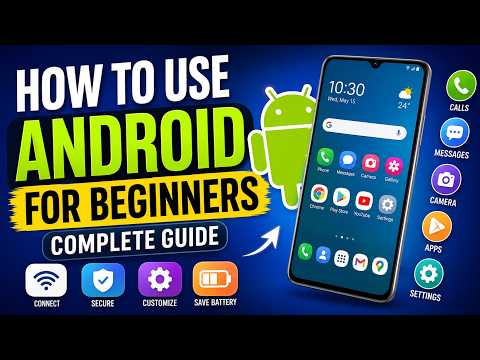
Running out of storage space is another hurdle you might face. When your phone’s internal memory fills up, performance inevitably slows down. To manage storage, navigate to Settings and select Storage. Android provides a clear breakdown of what is taking up space, categorized by apps, images, videos, and system data. Use the built-in Files app to delete large downloads, clear cached data from social media apps, and move photos to a cloud service like Google Photos to free up precious gigabytes.
Android Security and Privacy
Because Android is an open-source platform, it requires a proactive approach to security. Understanding how to protect your device is essential for any android smartphone beginner guide. Start by enabling Google Play Protect, a built-in security feature that scans apps for malicious behavior before and after installation. You can verify it is active by opening the Play Store, tapping your profile, and selecting Play Protect.
Beyond app scanning, consider using the built-in Google Find My Device feature. This tool allows you to locate, lock, or erase your phone remotely if it is lost or stolen. You should also review your app permissions regularly. Android now provides a Privacy Dashboard that gives you a snapshot of which apps accessed your camera, microphone, and location in the last 24 hours. Revoking unnecessary permissions is one of the best ways to maintain your digital privacy and keep your data safe.
Comparing Popular Android Ecosystems
While the core Android experience remains consistent, different manufacturers add their own custom skins. Understanding these differences helps you choose the right device for your needs. The table below compares three popular brands for beginners.
| Feature | Stock Android (Pixel) | One UI (Samsung) | MIUI (Xiaomi) |
| Interface | Minimal and intuitive | Feature-rich with custom themes | Heavy with extras |
| Update Speed | Fastest Android updates | Regular but delayed | Slowest among brands |
| Customization | Basic but smooth | Highly customizable | Extensive but cluttered |
Conclusion
Embracing the Android ecosystem opens up customization and flexibility that is second to none. By following this android smartphone beginner guide, you have laid the groundwork for a safe, efficient, and enjoyable mobile experience. Remember, the key to mastering Android is experimentation—do not be afraid to explore the settings menu and discover features that work best for your lifestyle. Keep your software updated, manage your apps wisely, and take advantage of the robust security tools available at your fingertips. With these fundamentals in place, you are no longer a beginner; you are an Android user ready to tackle any challenge.
Frequently Asked Questions
How do I transfer data to my new Android phone from an old device?
Android provides a robust data migration tool during the initial setup process. When you power on your new phone, the setup wizard will prompt you to copy your apps and data from your old device. You can choose to restore from a cloud backup via your Google account, or you can use a wired cable connection for a faster, direct transfer. If you are switching from an iPhone, Google offers a dedicated Move to iOS app on the Apple App Store to facilitate the transition smoothly.
What are the best Android apps for beginners?
For a new user, essential apps include Google Maps for navigation, Gmail for email management, and Google Drive for cloud storage. A reliable password manager like Bitwarden is crucial for security, while WhatsApp keeps you connected with friends and family. Additionally, a solid note-taking app like Google Keep helps you organize your thoughts and shopping lists without cluttering your home screen.
How can I improve my Android phone battery life?
To extend your battery life, start by enabling Battery Saver mode in your settings, which limits background data and reduces visual effects. You should also review your app permissions, revoking location access for apps that do not need it, as constant GPS usage drains the battery rapidly. Finally, lowering your screen brightness and disabling background app refresh for non-essential programs can yield significant battery savings throughout the day.
Is it safe to download apps outside the Google Play Store?
Downloading apps from outside the official Google Play Store, known as sideloading, carries inherent risks. While it is technically possible by enabling install from unknown sources in your settings, doing so exposes your device to potential malware and security vulnerabilities. Unless you are downloading from a highly reputable source and trust the developer completely, it is always safest to stick to the Google Play Store to protect your personal data.
How do I customize the Android home screen?
Customizing your home screen is one of the best parts of using Android. Long-press an empty space on your display to enter edit mode. From there, you can add widgets for real-time information, change your wallpaper, and create folders to organize similar apps by dragging one icon onto another. For a completely different look, you can install third-party launchers from the Play Store, which replace your default home screen with a new interface and gesture controls.
What should I know before buying an Android smartphone?
Before purchasing, evaluate your budget and prioritize the features that matter most to you, such as camera quality, battery capacity, or processing speed. Consider the manufacturer’s software update policy, as this determines how long your phone will receive security patches and new Android versions. Also, verify the device supports your carrier’s network bands, especially if you prefer using physical SIM cards or eSIM technology. Researching specific models like the Google Pixel for pure software or Samsung Galaxy for premium hardware will help you find the perfect fit.