


Dealing with a stubborn computer error or a sudden system crash can be incredibly frustrating, especially when you are trying to meet a tight deadline or finish an important project. For years, resolving technical issues required deep technical knowledge, endless web searching, and the patience of a saint. However, the landscape of IT support has dramatically shifted over the last decade, and the automatic troubleshooter has emerged as a game-changing tool for both everyday users and enterprise IT teams. An automatic troubleshooter is a diagnostic and resolution engine designed to detect, analyze, and fix common system problems without requiring manual intervention from a human operator. Whether you are running the built-in Windows troubleshooters, utilizing advanced AIOps platforms, or leveraging smart diagnostic utilities within specialized software, understanding how these automated diagnostic tools function is essential for keeping your systems healthy, secure, and operational. This comprehensive guide dives deep into the mechanics, benefits, and practical applications of automated troubleshooting, equipping you with the knowledge to resolve issues faster and more efficiently than ever before. By embracing automated resolution, you transform your relationship with technology from one of frustration to one of seamless operation.
What Exactly Is an Automatic Troubleshooter?
At its core, an automatic troubleshooter is a software program or utility that scans your operating system, applications, or network configurations to identify the root cause of a problem. Instead of sifting through verbose error logs or guessing at potential fixes, this automated approach relies on predefined logic trees, heuristic algorithms, and massive databases of known failure patterns to pinpoint the issue accurately. When you initiate a diagnostic scan, the troubleshooter evaluates system states against known baselines of normal operation. If it detects a deviation—such as a corrupted registry key, a missing driver, a misconfigured firewall rule, or an incompatible software update—it triggers an automated resolution workflow. These tools are designed to be self-contained, meaning they can apply patches, restart essential services, modify registry values, or roll back problematic updates without waiting for human input. By bridging the gap between detection and remediation, automatic diagnostics save countless hours of downtime, reduce the risk of human error, and empower users who may lack deep technical expertise to maintain their own systems effectively.
How Automatic Diagnostics Work Behind the Scenes
Understanding the mechanics of automatic diagnostics helps demystify the process and build trust in the technology. When you launch an automated diagnostic tool, it typically follows a structured sequence that is carefully designed to minimize disruption. First, the scanner performs a comprehensive inventory of the system environment, checking for specific triggers associated with documented known issues. Next, the engine analyzes the collected data against a vast repository of error codes, system logs, and behavioral patterns that have been cataloged by developers over the years. Once the root cause is identified with a high degree of confidence, the troubleshooter executes a pre-configured remediation script tailored to that specific problem. Finally, it generates a detailed report outlining what was found, what actions were taken to fix the issue, and any recommended follow-up steps for the user. This end-to-end automation ensures that even non-technical users can resolve complex issues safely, provided the automated logic has been properly configured by the software vendor.
The Evolution of Automated System Diagnostics
The journey of troubleshooting has been a fascinating evolution from manual guesswork to intelligent automation. In the early days of computing, fixing a problem meant reading thick printed manuals, deciphering hexadecimal error codes, or calling a dedicated support line that might keep you on hold for hours. The introduction of basic wizards in the late 1990s offered a primitive form of guided repair, but true automation was still a distant dream. Today, automatic troubleshooting has evolved into a sophisticated discipline powered by machine learning, artificial intelligence, and massive cloud-based analytics. Modern auto troubleshooters do not just follow rigid if-then logic; they learn from past resolutions across thousands of different devices and environments. They recognize patterns, predict potential failures before they even manifest, and suggest proactive measures. This shift from reactive to proactive automated diagnosis represents a massive leap forward in system reliability, user experience, and overall digital resilience.
From Manual Fixes to Self-Healing IT Infrastructure
The concept of self-healing IT is no longer relegated to the realm of science fiction; it is a practical reality being deployed by organizations worldwide. Companies now deploy automated resolution engines that continuously monitor network health, server performance, and application availability in real-time. When an anomaly is detected by the monitoring system, the self-healing architecture automatically isolates the fault, scales resources if needed, and deploys a targeted fix without any human intervention. This automated response capability is particularly crucial in cloud environments where manual intervention is often too slow to prevent significant business disruptions. The automatic troubleshooter is at the heart of this transformation, serving as the first line of defense against system instability and ensuring business continuity during unexpected technical events. The ability to autonomously resolve common issues allows IT teams to focus on strategic initiatives rather than constantly firefighting minor bugs.
Key Benefits of Using an Auto Troubleshooter
Why should you rely on an automatic troubleshooter instead of spending hours trying to fix issues manually? The advantages are substantial and impact both personal productivity and system longevity in profound ways. Leveraging automated resolution tools transforms how you interact with your technology.
- Time Efficiency: Automated tools can resolve issues in minutes that might take hours of manual research, log reading, and trial-and-error execution. By instantly running a system check, you bypass the guesswork entirely and get back to work rapidly.
- Consistency and Accuracy: Human error is a leading cause of failed repairs and unintended system breaks. An auto troubleshooter applies standardized fixes based on verified protocols, ensuring that the resolution is both safe and effective every single time.
- Continuous Monitoring: Unlike manual troubleshooting, which is strictly event-driven and only happens when something breaks, automated diagnostics run in the background continuously, catching potential problems early before they escalate into critical, system-crashing failures.
- Cost Savings: Reducing the need for dedicated IT support for routine, recurring issues translates directly into significant cost savings for businesses of all sizes, allowing resources to be allocated to more strategic growth initiatives.
- User Empowerment: Automatic tools give everyday users the confidence to fix common problems themselves without waiting for IT helpdesk responses, reducing bottlenecks and keeping individuals productive and self-sufficient.
Built-in vs. Third-Party Automatic Troubleshooters
Not all automated diagnostic tools are created equal. Choosing between the native options provided by your operating system and third-party solutions depends heavily on your specific needs, technical environment, and the complexity of the issues you encounter. Each approach offers distinct advantages.
| Feature | Built-in Automatic Troubleshooter | Third-Party Auto Troubleshooter |
| Cost | Included with the operating system; no extra charge | Requires a subscription or a one-time purchase fee |
| Scope | Limited to OS-level and common application issues | Comprehensive; covers hardware, network, deep system apps |
| Update Frequency | Updated via system patches and OS updates | Frequently updated by the vendor to catch new threats |
| Customization | Very limited; users cannot alter diagnostic logic | Highly customizable; can create custom repair scripts |
| Support | Community forums and official vendor documentation | Dedicated customer support and priority response times |
Built-in options like the Windows automatic troubleshooter are perfect for everyday users facing common issues like audio failures, printer connectivity, or network configuration errors. They are safe, readily available, and require no additional installation. However, they lack the depth required for complex enterprise environments. Third-party automated diagnosis platforms, on the other hand, offer granular control, advanced heuristic analysis, and proactive threat mitigation. For IT administrators managing large fleets of devices across a distributed network, third-party auto troubleshooters are often an indispensable asset that justifies the investment.
How to Leverage the Windows Automatic Troubleshooter Like a Pro
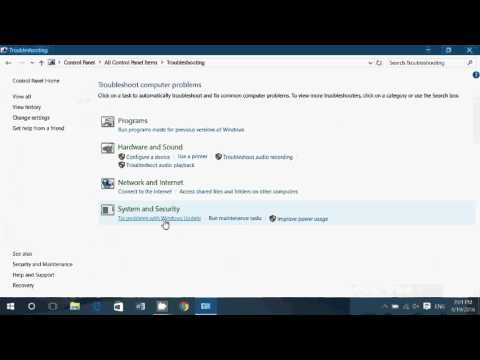
While the Windows operating system includes a robust suite of automatic troubleshooting utilities, many users leave them untouched or completely unaware of their existence. Running the built-in Windows troubleshooter correctly can resolve a surprising number of common problems without the need to install any third-party software or seek external help. Here is a step-by-step guide to getting the most out of these native tools.
- Access the Settings Menu: Click the Start button and select Settings, then navigate to Update & Security, followed by the Troubleshoot section to access the full list of available diagnostic tools.
- Select the Appropriate Tool: Windows offers specific troubleshooters for Internet Connections, Hardware and Devices, Playing Audio, Keyboard, and more. Choose the one that aligns most closely with your current specific problem.
- Run as Administrator: To ensure the auto troubleshooter has the necessary permissions to modify system files and registry entries safely, always run the diagnostic with administrative privileges by right-clicking and selecting the appropriate option.
- Review the Applied Fixes: After the scan completes its analysis, carefully review the generated report. The tool will explain exactly what it found, what actions it took to resolve the issue, and any recommendations for further steps.
- Reset and Re-run if Necessary: If the first pass does not fix the problem completely, resetting the troubleshooter via the additional troubleshooters link and running it again can sometimes clear lingering errors that were not resolved on the initial attempt.
Mastering the Windows automatic troubleshooter empowers you to handle everyday system hiccups rapidly and efficiently. Integrating these tools into your regular maintenance routine ensures that minor software glitches do not evolve into major operational disruptions. Make it a habit to run diagnostics regularly rather than waiting for a critical failure to occur.
When Automated Diagnostics Fall Short
It is important to acknowledge that an auto troubleshooter is not a silver bullet that will magically fix every technical issue under the sun. While these tools excel at resolving known, documented issues and correcting configuration drift, they can struggle with novel or highly complex system corruption. If your system is plagued by a deeply intertwined software conflict or a physical hardware failure, the automatic resolution engine might either fail to find a solution or apply a generic fix that does not address the underlying cause effectively. Furthermore, some automated tools may require an internet connection to download necessary replacement files or updated definitions. In such scenarios, manual intervention, utilizing System Restore points, or professional IT consultation becomes absolutely necessary to fully resolve the issue. Always ensure you have recent, verified backups before allowing an automated tool to make significant modifications to critical system files, just in case the remediation process introduces unintended side effects or requires a rollback.
Conclusion

The automatic troubleshooter has fundamentally changed how we manage and maintain our digital environments across both personal and professional landscapes. From the built-in Windows automatic troubleshooter and smart diagnostic wizards to sophisticated enterprise AIOps platforms, automated diagnostics provide an indispensable layer of protection against system instability. By understanding how these tools work, leveraging their numerous benefits, and knowing their inherent limitations, you can dramatically reduce downtime, protect your valuable data, and keep your systems running smoothly and efficiently. Embrace the power of automated resolution, and let your digital assistant handle the heavy lifting while you focus on what truly matters in your work and daily life.
Frequently Asked Questions
What is the difference between an automatic troubleshooter and a manual diagnostic?
The primary difference lies in automation and speed. A manual diagnostic requires a user to interpret error codes, search for solutions online, and apply fixes step-by-step carefully. In contrast, an automatic troubleshooter uses pre-built logic to detect issues and apply the correct fix autonomously. While manual diagnostics offer granular control over every step, the auto troubleshooter drastically reduces resolution time and eliminates human error during the repair process, making it ideal for routine maintenance and common issues.
How often should I run the Windows automatic troubleshooter?
There is no strict rule, but running the Windows automatic troubleshooter on a bi-weekly or monthly basis is a best practice for maintaining ongoing system health and preventing minor issues from compounding. If you frequently experience recurring issues like network drops or audio failures, consider running the relevant automatic diagnostic tool immediately when the problem occurs rather than waiting for it to resolve itself. Routine automated checks can preempt small glitches from evolving into major system crashes.
Can an auto troubleshooter fix hardware problems?
Generally, an automatic troubleshooter is designed to resolve software and configuration issues rather than physical hardware failures. While the tool might detect a non-responsive device and attempt to reinstall or roll back drivers, it cannot repair a physically damaged component like a failing hard drive or a broken motherboard. If the automated resolution tool identifies a hardware failure or suggests replacing a part, it is time to consult a professional technician or replace the faulty component yourself.
Are third-party automatic troubleshooting tools safe to use?
Yes, but only if you download them from reputable and verified sources. The cybersecurity landscape is unfortunately fraught with fake troubleshooters that are actually malware disguised as legitimate diagnostic tools. Always choose well-established third-party auto troubleshooters with positive user reviews and verified security certifications. Running a virus scan on any new diagnostic software before installation is a wise precaution to ensure your system remains completely secure and protected from malicious code.
Will an automatic troubleshooter delete my personal files?
Most automated resolution engines are designed to modify system files, registry keys, and configurations, not personal user data like documents or photos. However, some fixes might roll back recent updates or remove problematic drivers that were recently installed, which could temporarily affect the functionality of connected peripherals. Always back up important personal files before allowing an automatic diagnostic tool to make significant changes to your system, just as a standard safety precaution.