


Every computer user eventually faces that frustrating moment when the desktop slows to a crawl, a program freezes mid-task, or the system refuses to boot altogether. Desktop troubleshooting isn’t just a skill for IT professionals — it’s an essential competency for anyone who relies on a computer for work, education, or personal use. Whether you’re dealing with a Windows PC acting sluggish or a Mac experiencing mysterious glitches, understanding the fundamentals of desktop problem-solving can save you hours of downtime and potentially hundreds of dollars in repair costs. This comprehensive guide walks you through everything from identifying the root cause of common hardware and software failures to applying proven fixes that restore your system to peak performance. By the end, you’ll have the confidence and knowledge to tackle most desktop issues without needing to call a technician.
Why Basic Desktop Troubleshooting Matters
Modern desktops run on complex ecosystems of hardware components, operating system processes, and software applications working simultaneously. When even one element fails or behaves unexpectedly, the effects ripple through your entire workflow. Learning desktop troubleshooting fundamentals empowers you to diagnose problems methodically rather than panicking or blindly reinstalling everything. The difference between a five-minute fix and a full system recovery often comes down to having structured diagnostic skills and a logical approach to identifying what went wrong.
Beyond saving money, effective troubleshooting extends the lifespan of your machine. Many users replace perfectly functional computers simply because they don’t know how to resolve performance degradation, driver conflicts, or connectivity issues. Understanding core desktop troubleshooting techniques means you can address these problems proactively, keeping your system reliable for years longer than the average user’s experience.
Common Desktop Issues and How to Identify Them

Before jumping to solutions, you need accurate problem identification. Misdiagnosis leads to wasted time and sometimes makes issues worse. Here are the most frequently encountered desktop problems, categorized by type.
Performance and Slowdown Problems
- Boot time delays — The system takes unusually long to reach the desktop after powering on, often caused by excessive startup programs, failing hard drives, or registry bloat.
- General slowness — Applications take ages to open, file transfers crawl, and the cursor sometimes freezes temporarily, usually pointing to high disk usage or insufficient RAM.
- Random freezes and hangs — The entire system locks up requiring a hard reboot, which may indicate overheating, driver conflicts, or memory leaks in running software.
Connectivity and Network Issues
- Wi-Fi dropping repeatedly — Intermittent wireless disconnections that resolve temporarily after restarting the router or toggling airplane mode.
- Ethernet connection failures — Wired connections that show as disabled or limited access despite a working router and modem.
- Bluetooth pairing failures — Peripherals like keyboards, headsets, or mice that refuse to connect or disconnect randomly.
Hardware-Related Failures
- Blue Screen of Death (BSOD) on Windows — Critical error screens with specific stop codes pointing to driver or memory faults.
- Kernel panic on macOS — The Mac equivalent, displaying a grey restart screen that indicates deep system-level failures.
- Peripheral malfunctions — USB devices that aren’t recognized, external monitors that won’t display, or audio jacks producing no sound.
Software and Application Errors
- Programs crashing on launch — Applications that close immediately or display dependency errors like missing DLL files.
- Operating system update failures — Updates that get stuck at a percentage, roll back repeatedly, or corrupt the boot partition.
- Persistent popup warnings — Security alerts or system notifications that appear constantly, often signaling malware or corrupted system files.
Step-by-Step Desktop Troubleshooting Guide
Follow this systematic approach whenever your desktop misbehaves. Each step builds on the previous one, narrowing the possible causes progressively.
- Document the symptoms precisely. Note exactly when the problem started, what you were doing at the time, and any error messages displayed. Screenshot error codes — they’re invaluable for online research later.
- Check the basics first. Verify that all cables are seated firmly, power cables are connected, and peripheral devices aren’t interfering. A loose HDMI cable or unplugged power strip solves surprisingly many issues.
- Restart your computer. This clears temporary memory, terminates stuck processes, and resets many hardware states. Always try a clean restart before attempting complex fixes.
- Boot into Safe Mode. Safe Mode loads only essential drivers and services. If the problem disappears in Safe Mode, the cause is likely a third-party driver, startup application, or recently installed software.
- Review Event Viewer or System Logs. On Windows, open Event Viewer and look under Windows Logs for Critical or Error entries matching the time of the problem. On macOS, use Console.app to examine system.log for relevant entries.
- Check for resource bottlenecks. Open Task Manager (Ctrl+Shift+Esc on Windows) or Activity Monitor (on macOS) and sort by CPU, Memory, and Disk usage to identify the offending process.
- Run built-in diagnostic tools. Windows includes tools like SFC (System File Checker), DISM, and Memory Diagnostic. macOS offers Disk Utility and Apple Diagnostics for hardware testing.
- Update drivers and software. Outdated graphics drivers, chipset drivers, and application versions are among the most common sources of instability.
- Undo recent changes. If the problem started after installing new software, updating a driver, or changing system settings, use System Restore (Windows) or Time Machine rollback (macOS) to revert.
- Seek targeted solutions. With your documented symptoms and log data, search for specific error codes or problem descriptions on manufacturer support pages and trusted tech forums.
Essential Tools and Utilities for Effective Desktop Troubleshooting

Having the right diagnostic tools installed makes troubleshooting faster and more accurate. Here’s a curated list of resources every desktop user should know about.
| Tool | Platform | Primary Use | Why It Helps |
| Event Viewer | Windows | System log analysis | Reveals critical errors, driver failures, and application crashes with timestamps |
| Task Manager / Activity Monitor | Windows / macOS | Resource monitoring | Identifies CPU hogs, memory leaks, and disk bottlenecks in real time |
| SFC / DISM | Windows | System file repair | Scans for and repairs corrupted or missing operating system files |
| Disk Utility | macOS | Drive health checking | Verifies and repairs file system permissions and disk errors |
| MemTest86 | Cross-platform | RAM testing | Boots outside the OS to thoroughly test memory for faults |
| CrystalDiskInfo | Windows | Hard drive S.M.A.R.T. monitoring | Tracks drive health metrics and warns of impending hardware failure |
| Wireshark | Cross-platform | Network traffic analysis | Captures and analyzes packets to diagnose connectivity problems |
Desktop Troubleshooting: Windows vs macOS Comparison
While the fundamental troubleshooting methodology applies to both platforms, the specific tools, recovery options, and common failure points differ.
| Aspect | Windows | macOS |
| Safe Mode access | Hold Shift during boot or use msconfig | Hold Shift immediately after the Apple logo appears |
| System file repair | SFC and DISM commands in Command Prompt | Disk Utility First Aid in Recovery Mode |
| System restore | System Restore via Control Panel | Time Machine backup rollback |
| Driver management | Device Manager; updates via Windows Update or manufacturer sites | Built-in software updates; drivers bundled with macOS |
| Common failure cause | Driver conflicts, registry corruption, malware | Permission errors, macOS update failures, Spotlight indexing |
| Hardware diagnostics | Windows Memory Diagnostic, manufacturer-specific tools | Apple Diagnostics (hold D at boot) |
Preventive Maintenance to Reduce Future Troubleshooting
The best troubleshooting is the troubleshooting you never need to do. Incorporating these preventive habits into your routine dramatically reduces the frequency and severity of desktop problems.
- Keep your operating system and drivers current. Enable automatic updates for security patches and stability improvements, but periodically review update logs for anything unusual.
- Monitor disk health regularly. Run S.M.A.R.T. diagnostics monthly and keep at least 15-20% of your drive free to maintain optimal read/write performance.
- Manage startup programs. Disable unnecessary applications from launching at boot through Task Manager’s Startup tab or macOS Login Items preferences.
- Perform regular backups. Use automated backup solutions like File History (Windows) or Time Machine (macOS) so that data loss from any troubleshooting step is never catastrophic.
- Clean your hardware physically. Dust buildup inside desktop towers causes overheating, which leads to thermal throttling, random shutdowns, and component degradation over time.
- Use reputable security software. Malware infections masquerade as countless other problems, so maintaining active protection prevents an entire category of desktop issues.
Expert tip: Create a system restore point or Time Machine backup before making any significant change to your system. This safety net lets you roll back instantly if a troubleshooting step accidentally worsens the problem.
Frequently Asked Questions About Desktop Troubleshooting
1. How do I fix a desktop that keeps restarting randomly? Random restarts are most commonly caused by overheating, a failing power supply, or incompatible drivers. Start by checking internal temperatures with a tool like HWMonitor, ensure all fans are spinning properly, and then scan your Event Viewer for critical errors logged just before each restart event. If the restarts follow a Windows update, boot into Safe Mode and uninstall the recent update through the Update History panel.
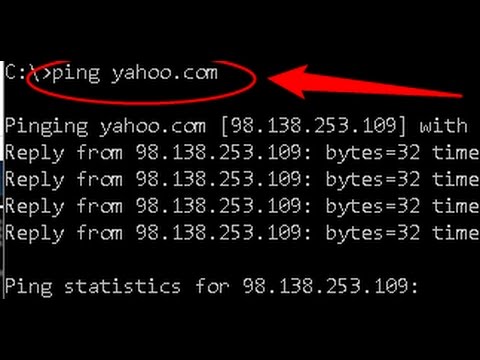
2. What should I do if my desktop won’t connect to Wi-Fi but my phone works fine? This pattern almost always points to a local desktop configuration issue rather than a router or internet problem. First, run the Windows Network Troubleshooter or reset network settings on macOS. Then disable and re-enable the Wi-Fi adapter in Device Manager, flush your DNS cache with ipconfig /flushdns, and if needed, manually reset the TCP/IP stack using netsh int ip reset. If none of these work, the Wi-Fi adapter driver itself may be corrupted and require a clean reinstall.
3. Why does my desktop run slowly after startup and how can I fix it? Post-boot slowness typically results from too many startup applications consuming RAM and CPU simultaneously. Open Task Manager, navigate to the Startup tab, and disable every non-essential program. Additionally, check for background processes like Windows Search indexing, OneDrive syncing, or antivirus scans that may be consuming resources. On macOS, review Login Items in System Preferences and check Activity Monitor for Spotlight or Time Machine processes running at login.
4. How do I troubleshoot a desktop that shows no display output? Start by verifying the monitor is powered on and the correct input source is selected. Then test with a different cable and, if possible, a different monitor or port. If the computer’s fans spin but you get no image, reseat the RAM modules and try booting with only one stick at a time to isolate a memory fault. On desktops with discrete GPUs, try connecting the display cable directly to the motherboard’s integrated output to rule out a graphics card failure. Listen for beep codes from the motherboard speaker — these audio signals provide critical hardware diagnostic information during the POST process.
5. Can a full hard drive cause desktop freezing and how do I check? Absolutely. When a drive reaches near capacity, Windows struggles to manage virtual memory and temporary files, leading to severe performance degradation and freezes. Open File Explorer and check your C: drive’s free space — you should always maintain at least 15 to 20 percent free. Use Storage Settings in Windows or Optimize Storage in macOS to identify large, unnecessary files. Tools like WinDirStat provide visual breakdowns of what’s consuming your disk space, making cleanup decisions much easier.
6. Is it safe to troubleshoot desktop issues by editing the registry? Registry editing is powerful but carries significant risk — a single incorrect modification can render Windows unbootable. Always export and back up the specific registry key before making any changes. Unless you follow a trusted, documented procedure for a specific problem and understand exactly what each value does, rely on System Restore points, Group Policy Editor, or built-in tools that modify the registry safely behind the scenes. For most common troubleshooting scenarios, there are safer alternatives that produce the same result without risking registry corruption.
Final Thoughts
Mastering basic desktop troubleshooting transforms you from a passive user dependent on external help into an empowered problem solver who can resolve issues quickly and confidently. The key is approaching every problem with a logical, methodical mindset — document symptoms, eliminate simple causes first, leverage built-in diagnostic tools, and never skip the fundamentals like cable checks and system restarts. As you gain experience, you’ll develop an intuition for recognizing patterns and identifying root causes faster than ever before. Keep this guide bookmarked, revisit the preventive maintenance section regularly, and remember that every problem you solve makes you a more capable and self-sufficient computer user. The skills outlined here apply across desktop models, operating systems, and experience levels, giving you a reliable foundation that serves you well no matter what technical challenge comes your way.