


When your internet suddenly drops or your network connection becomes painfully slow, the panic can set in quickly, especially if you are working on a tight deadline. Understanding basic network troubleshooting is no longer just a skill for IT professionals; it is a fundamental competency for anyone relying on a stable digital connection. Whether you are dealing with a complete loss of network connectivity or simply trying to resolve connectivity problems on your home office setup, knowing how to diagnose and fix the issue can save you hours of frustration. This guide walks you through a structured approach to troubleshoot internet connection issues, moving from simple physical checks to advanced diagnostic commands. By the end, you will have a robust network troubleshooting steps checklist ready for any situation.
Why Basic Network Troubleshooting is Essential in Modern Environments
In today’s hyper-connected world, a reliable connection is the backbone of productivity. When network issues arise, they cascade into missed meetings, lost data, and mounting stress. Instead of blindly restarting your router or calling your Internet Service Provider (ISP) immediately, learning how to perform fix network connection issues efficiently empowers you to take control of your digital environment. Network troubleshooting techniques allow you to pinpoint exactly where the breakdown occurs—whether it is a faulty cable, a misconfigured IP address, or a DNS resolution failure. Mastering these fundamental skills reduces downtime and ensures that your local network remains robust and reliable under pressure.
The Core Network Troubleshooting Framework: A Layered Approach
Effective troubleshooting relies on a logical, layered approach. When you encounter connectivity issues, breaking the problem down into layers helps isolate the root cause. The process typically moves from physical hardware up through the software stack, ensuring that no stone is left unturned during the network diagnostic phase. This systematic methodology prevents blind changes and ensures every step forward builds upon a verified foundation.
Step 1: The Physical Layer (Hardware and Connectivity)
Before digging into software configurations, always start with the physical layer. This is the foundation of your fix network connection issues strategy. Physical failures account for a large percentage of connection problems, yet they are the quickest to resolve.
- Inspect cables and connections: Ensure Ethernet cables are firmly seated in the router, modem, and device. Look for frayed wires causing intermittent signal loss.
- Check indicator lights: Routers have LED status lights. A solid green light indicates normal operation, while red often signals an error.
- Restart the hardware: Power cycle your modem and router by unplugging them for 30 seconds. This clears memory and forces a fresh ISP connection.
- Test different ports: Swap Ethernet cables between router ports to rule out a faulty physical port preventing your device from linking up.
Step 2: The Network and Data Link Layers (IP and DNS)
Once physical hardware is confirmed working, the next phase of basic network troubleshooting addresses how devices communicate on the local network and reach the internet. Problems at this level manifest as unstable network connection behavior, where pages load partially or fail entirely.
- Verify IP Configuration: Type `ipconfig` (Windows) or `ifconfig` (Mac/Linux) to ensure your device has a valid IP address. An address starting with 169.254.x.x indicates a failure to reach the DHCP server, meaning your router isn’t assigning an IP dynamically.
- Flush the DNS Cache: Your system may hold onto outdated DNS records, causing “server not found” errors. Clear the cache using `ipconfig /flushdns` (Windows) or `sudo dscacheutil -flushcache` (Mac).
- Test Name Resolution: Use the `nslookup` command to verify that your network diagnostic tools translate domain names into IP addresses correctly. If this fails but pinging an IP works, the issue is isolated to DNS.
Essential Network Diagnostic Tools You Must Know and Use
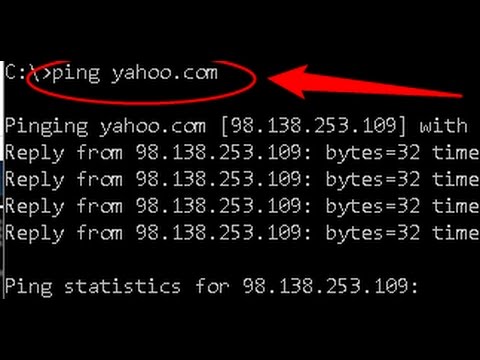
Every troubleshooter needs a reliable toolkit. Relying on guesswork is inefficient; leverage built-in network diagnostic tools to gather concrete data about where your connection problems originate. These commands are your best friends when you try to troubleshoot internet connection anomalies, providing empirical evidence.
| Tool/Command | Primary Function | How It Helps Troubleshoot |
| Ping | Tests reachability to a host | Identifies if the destination server is online and measures round-trip time. High latency indicates congestion. |
| Traceroute / Tracert | Maps the path packets take | Shows where data packets are delayed or dropped between your device and the target server. |
| Netstat | Displays active network connections | Reveals open ports and active connections, useful for spotting unauthorized traffic or bandwidth hogs. |
| Nslookup | Queries DNS servers | Determines if the issue is a DNS resolution failure or a broader internet connection outage. |
Intermediate to Advanced Troubleshooting Strategies for Persistent Issues
If basic steps do not resolve your network issues, elevate your network troubleshooting steps to an intermediate level. These strategies involve looking deeper into your local network architecture and ISP interactions.
- Check for IP Conflicts: Two devices cannot share the same IP. If you receive a conflict warning, release and renew your IP address using `ipconfig /release` followed by `ipconfig /renew` to force a fresh lease.
- Inspect Firewall Settings: Overly aggressive security software can block legitimate traffic, mimicking a severe connectivity issue. Temporarily disable your firewall to test if it is the culprit.
- MTU Size Configuration: Maximum Transmission Unit (MTU) is the largest packet size that can be transmitted. If set too high, packets fragment and drop, causing slow transfers. Adjusting MTU can restore stable network connection performance.
Expert Tip: Always change one variable at a time. If you tweak your DNS server and it fixes the issue, do not change your MTU simultaneously. Doing so makes it impossible to know which adjustment resolved the resolve connectivity problems.
Wired vs. Wireless Troubleshooting: A Quick Comparison Guide
Not all connection problems are created equal. The medium you use dictates the specific troubleshoot internet connection methods you should prioritize. Understanding wired versus wireless failure modes is crucial for accurate basic network troubleshooting.
| Factor | Wired (Ethernet) | Wireless (Wi-Fi) |
| Primary Failure Points | Cables, NIC, switch ports | Wireless adapter, radio frequency, signal interference |
| Common Symptoms | No link light, intermittent drops | “Connected, no internet,” slow speeds, disconnections |
| First Diagnostic Step | Test with a different cable and port | Check signal strength and physical obstructions |
| Typical Resolution | Replace cable or switch port | Change Wi-Fi channel, update adapter drivers |
Conclusion: Empowering Yourself Through Network Troubleshooting

Basic network troubleshooting is an empowering skill that bridges the gap between helplessly staring at a loading screen and efficiently resolving connectivity issues on your own. By following a structured approach—starting from physical hardware checks, moving through IP and DNS configurations, and utilizing precise network diagnostic tools—you can confidently fix network connection issues in almost any scenario. Remember to keep your network troubleshooting steps methodical, document changes, and verify results after each step. Whether you are a home user or managing a small office network, these strategies will keep your digital life running smoothly and ensure you are never left stranded by an unstable network connection.
Frequently Asked Questions (FAQs)
How to troubleshoot network connectivity issues when the router is online but the device is not?
First, ensure the device connects to the correct SSID and password is correct. Next, run the network adapter troubleshooter. If the issue persists, release and renew your IP address using `ipconfig /release` and `ipconfig /renew`, and flush your DNS cache. This often resolves resolve connectivity problems where the device fails to obtain a valid network lease despite the router being fully operational.
What are the basic steps for network troubleshooting in a corporate environment?
The basic steps begin with the physical layer—checking cables and port lights—before moving to the network layer. Verify the IP address and subnet mask, then ping the default gateway. If the gateway responds, ping an external IP like 8.8.8.8 to confirm the ISP connection. Finally, ping a domain name to test DNS resolution. This network troubleshooting framework isolates whether the issue is local, ISP-related, or DNS-based.
How to fix slow network connection without restarting the router?
To fix a slow internet connection, close bandwidth-heavy background applications and check router firmware. Switch your Wi-Fi to the 5GHz band if currently on 2.4GHz, as the latter is prone to interference. You can also change your DNS server to a faster public resolver like Google DNS or Cloudflare DNS, which significantly improves resolve connectivity problems related to slow name resolution.
Network troubleshooting commands that every user should memorize?
The top network troubleshooting commands include `ping`, `tracert`, and `nslookup`. `Ping` tests basic reachability and latency, `tracert` maps the route to identify failing hops, and `nslookup` verifies DNS translation. Combining these tools gives a comprehensive view of where connection problems lie, allowing you to target your fix network connection issues efforts with surgical precision.
Why is my network connection unstable and dropping frequently?
An unstable network connection is often caused by signal interference on Wi-Fi or faulty cabling in wired setups. Wireless drops are commonly triggered by competing networks on the same channel, microwave interference, or outdated router firmware. For wired connections, check for loose cable ends or faulty Network Interface Cards. Restarting the router forces a renegotiation of the link, which quickly tests if a temporary hardware glitch is causing the instability.